Hi, Bob.
All the route change information is saved along with the sample information in the save file. The save file included everything you need to do full analysis.
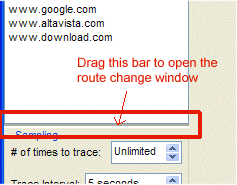
When you re-load a saved set, the route information gets populated in the route change window automatically. If the route change window is not visible, then you'll need to grab the splitter below the target history window to open it up. (I've attached a picture to highlight that splitter). Just click the splitter or drag it to open it to an appropriate size.
You are correct - when you click on a particular route change even, the upper graph shows that route using the focus period you have selected. In many cases, the router in the upper graph might not have participated during that time period, so you'll see no samples sent.
Whenever you select a period on the time graph, PingPlotter automatically selects the most recent valid route during that time period. This keeps the route in sync with the history period you have selected. Manually selecting the route in the left route window is the "override", and may require you to manually highlight the right time period to show valid statistics.
Additionally, if you want to find out what routers are different between two (or more) routes, you can just multi-select the routes in the route change list. The upper graph will highlight the routers that were different between these routes.
- Pete
Attachments




 Previous Topic
 Index
Index
